
Ontario Chat Appointments
How to Join and Conduct a Chat Appointment in Ontario
Please review the guidelines below for how to properly initiate and manage a chat-based appointment using Adracare, while staying compliant with provincial billing regulations.
✅ Before the Appointment
To initiate a chat visit in Adracare:
- You must join with both your video and microphone turned on.
(This is a system requirement to begin the session.)
⚙️ How to Disable Video and Audio for Messaging Visits
1) Uncheck the “Join with Video” checkbox before entering the session.
2) Click the “Click To Join Call” button to initiate the visit.
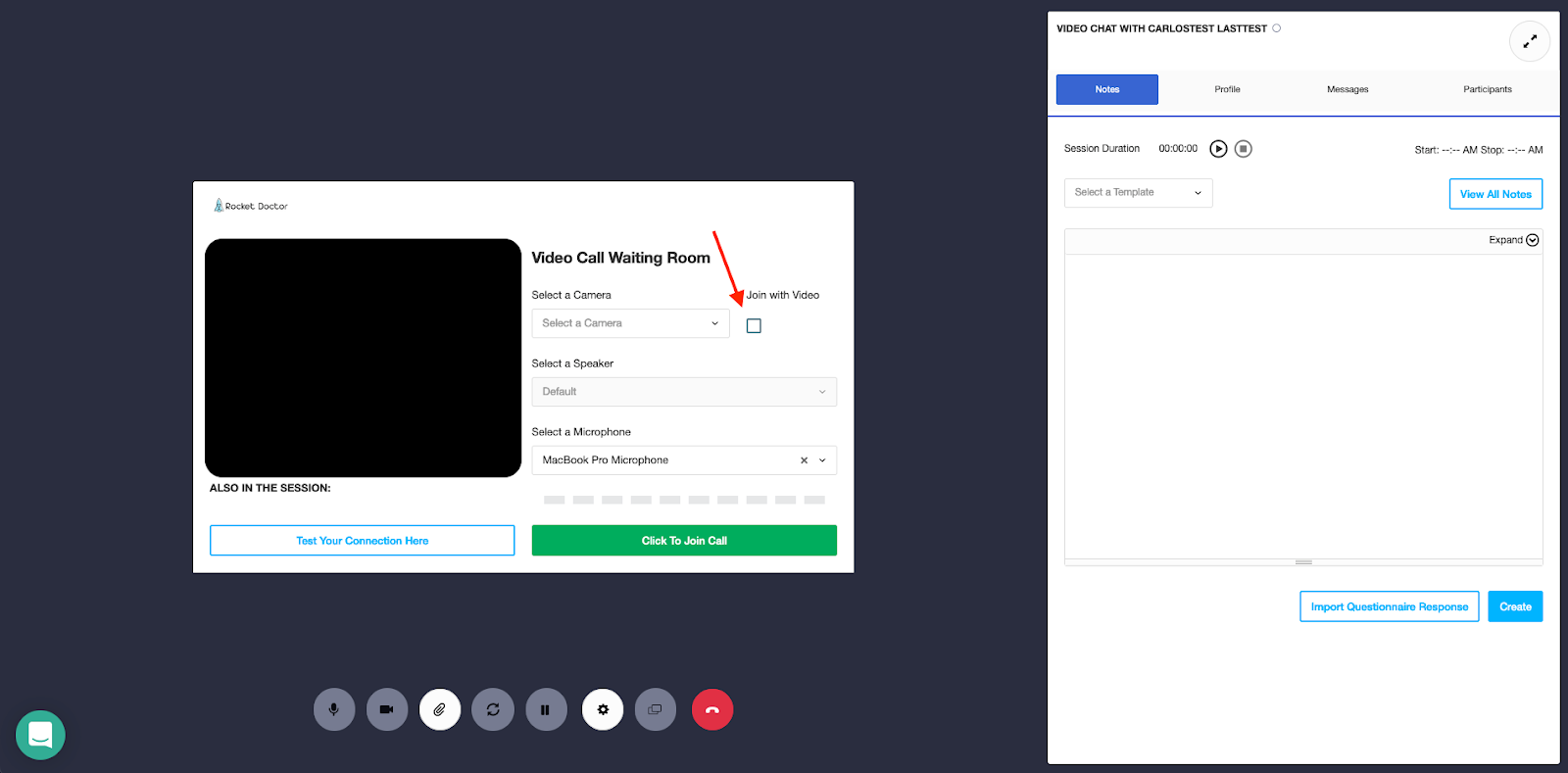
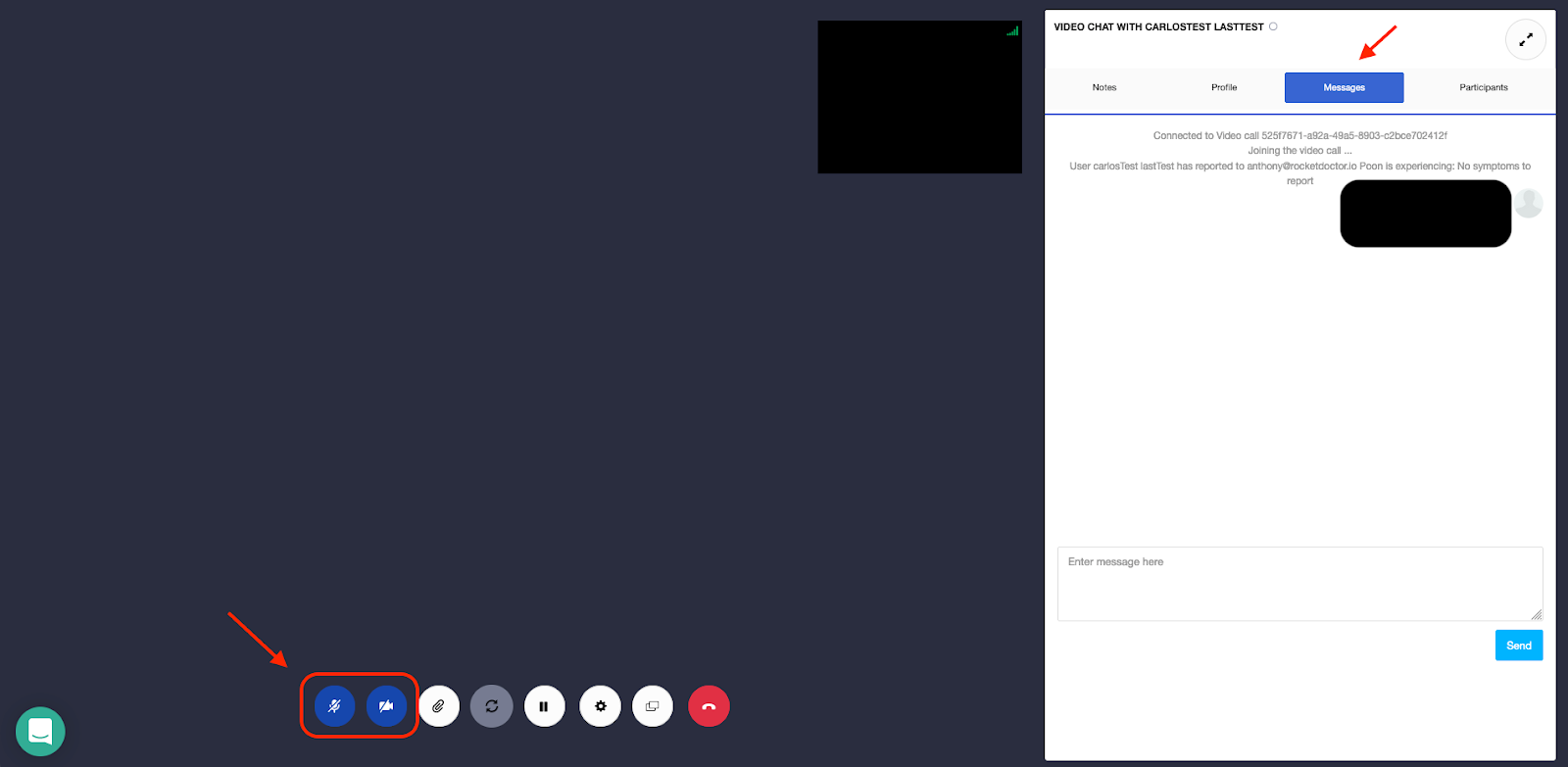
3) Once inside, ensure both audio and video are disabled using the toolbar at the bottom of your screen.
4) Navigate to the “Messages” tab to conduct the visit via secure chat.
🔇 During the Appointment
Once the chat window opens:
- You must immediately turn off your video and microphone.
- Under no circumstances should you turn them back on during the session.
⚠️ Important: If audio or video is used at any point, the visit may be interpreted as an insured video or phone service under OHIP.
👥 Patient Audio/Video Guidelines
Patients are also instructed to keep their video and audio off during messaging visits.
If a patient turns them on:
- Politely request they disable those features.
- If they do not comply, you should terminate the chat to remain compliant with OHIP billing rules.
📝 Documentation Reminder
Chat messages are not automatically saved as a clinical note.
- You must copy and paste the chat history into a new session note in the EMR to ensure proper documentation.