
Ontario: GoSecure / MCEDT Setup (Rocket Doctor Designation Process)
Updated: May 14, 2025
To enable Rocket Doctor’s admin team to validate patient health card numbers on your behalf, you’ll need to complete a one-time setup by designating us as a designee in your OPS BPS / MCEDT account.
🔐 Note: Once you’ve completed this step, please email the Provider Success team to let us know. This is essential so we can add you to our master list of connected doctors for our PCC team to begin health card validation on your behalf.
Step-by-Step Setup Instructions
Step 1: Log in to GoSecure / MCEDT
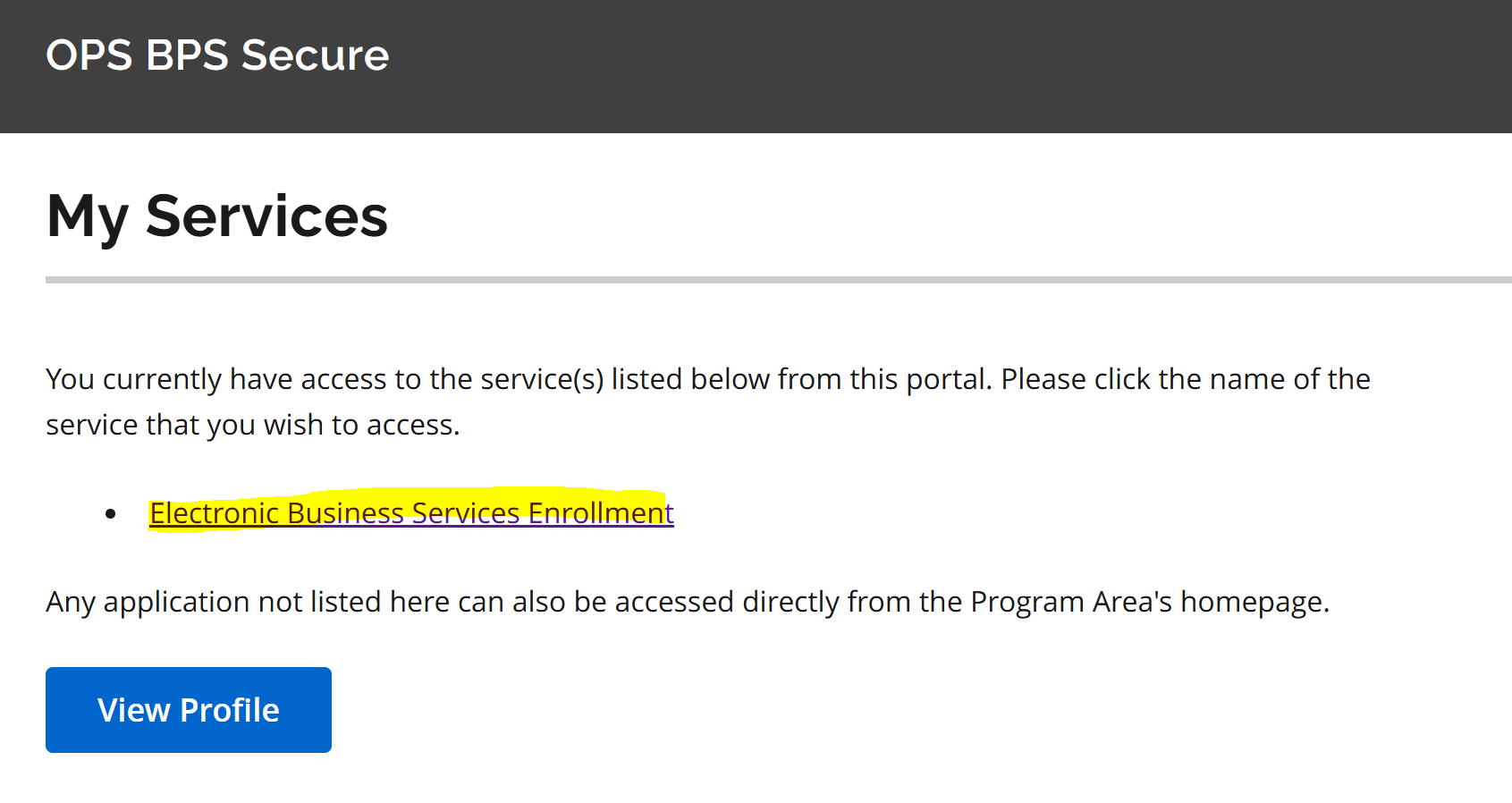
- Go to the OPS BPS / MCEDT portal
- Log in with your GoSecure credentials
- Click "Electronic Business Services Enrollment"
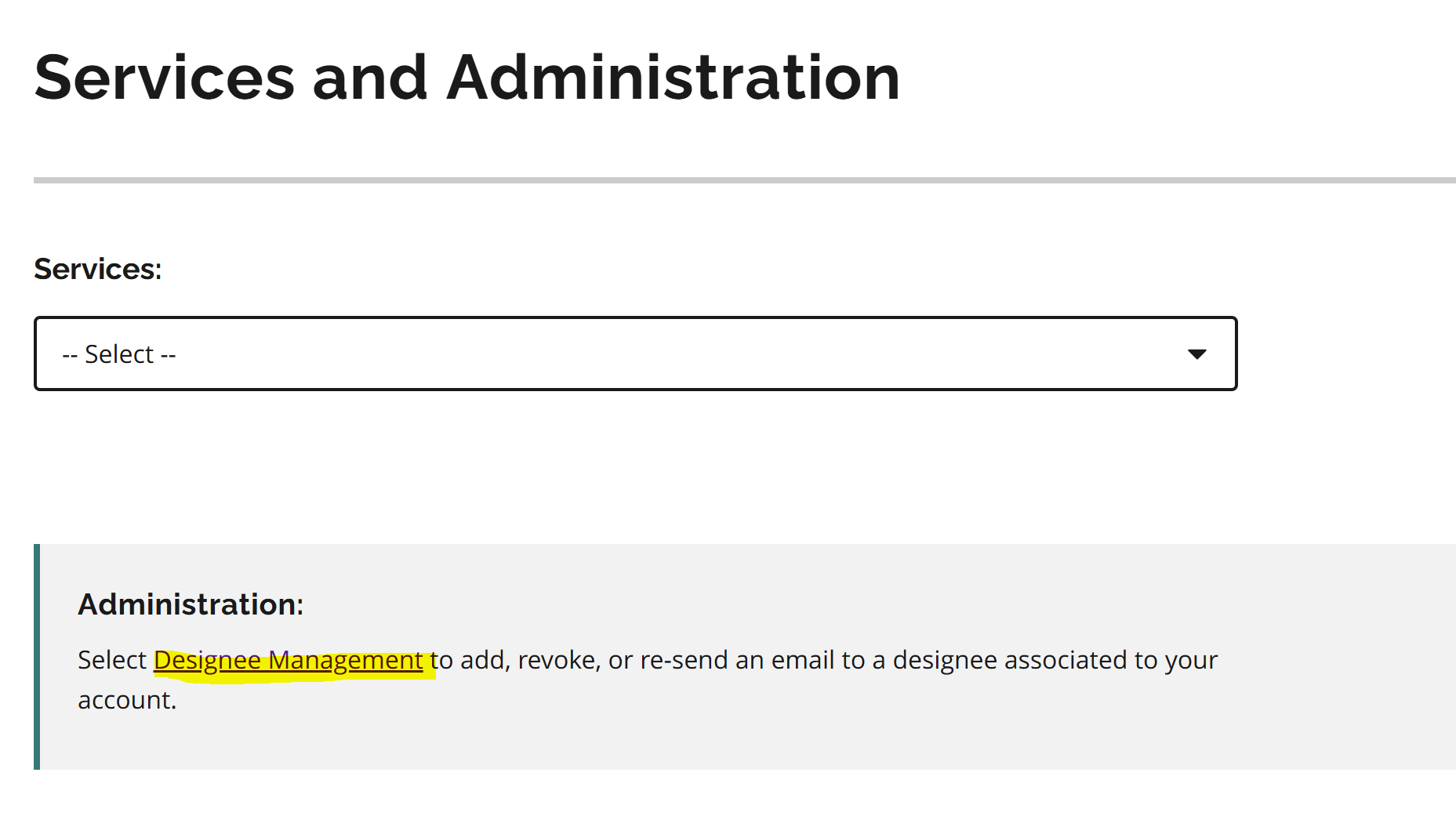
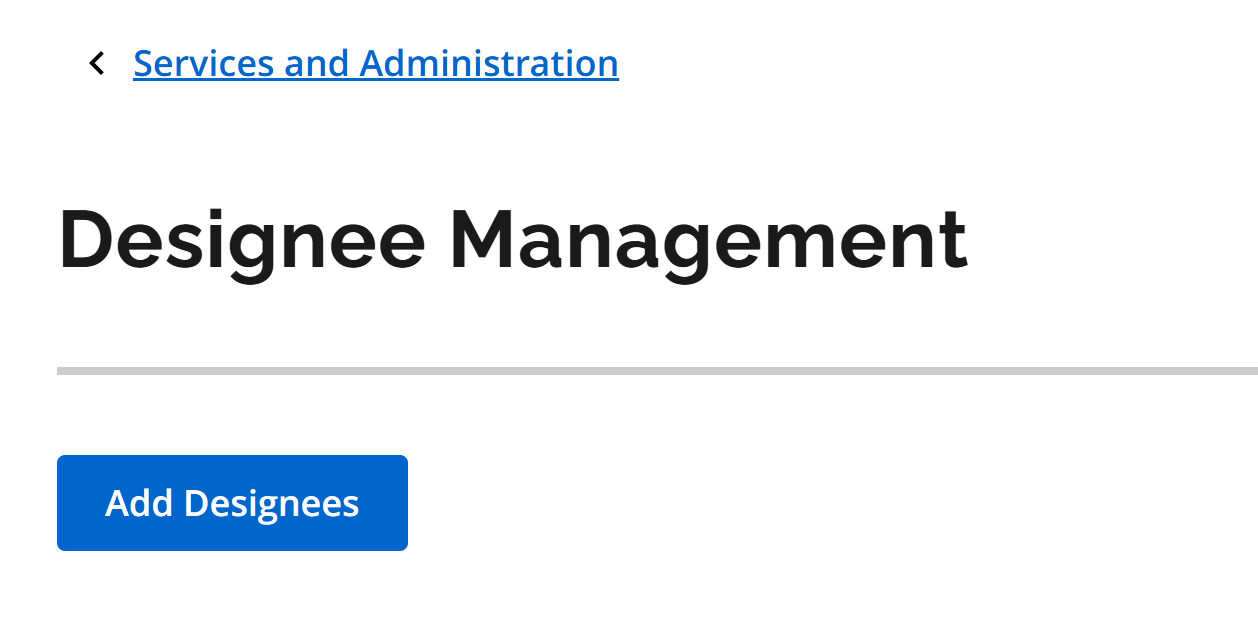
- Click "Designee Management", then "Add Designees"
Step 2: Add Rocket Doctor as a Designee
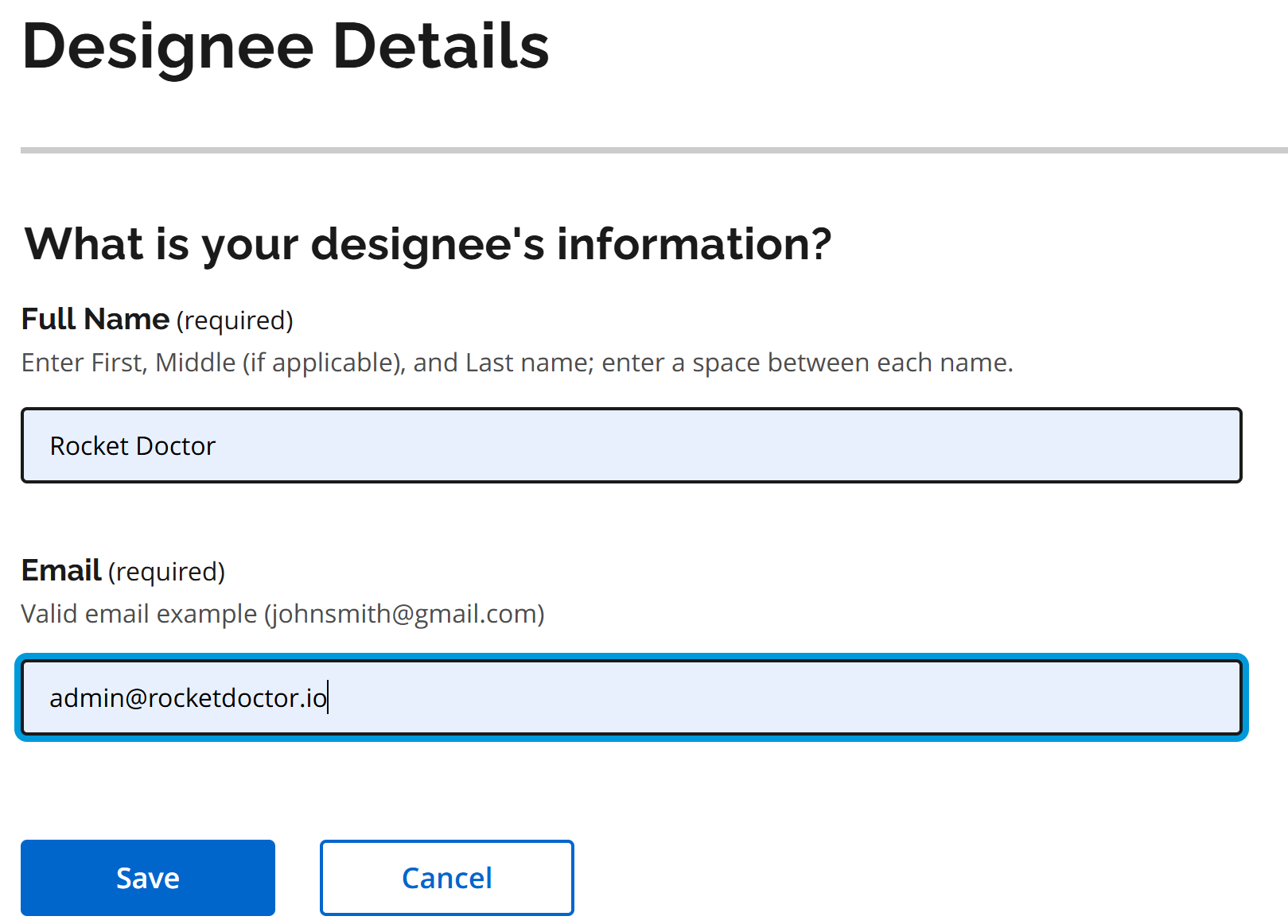
Enter the following information:
- Full Name: Rocket Doctor
- Email: admin@rocketdoctor.io
- Click Save
Step 3: Wait for Designation Confirmation
- After submitting the designation, you will see "admin@rocketdoctor.io" listed under “List of Designated Accounts.”
- If the Service Access column shows “Not yet confirmed”, don’t worry; this means our team has not yet accepted the designation.
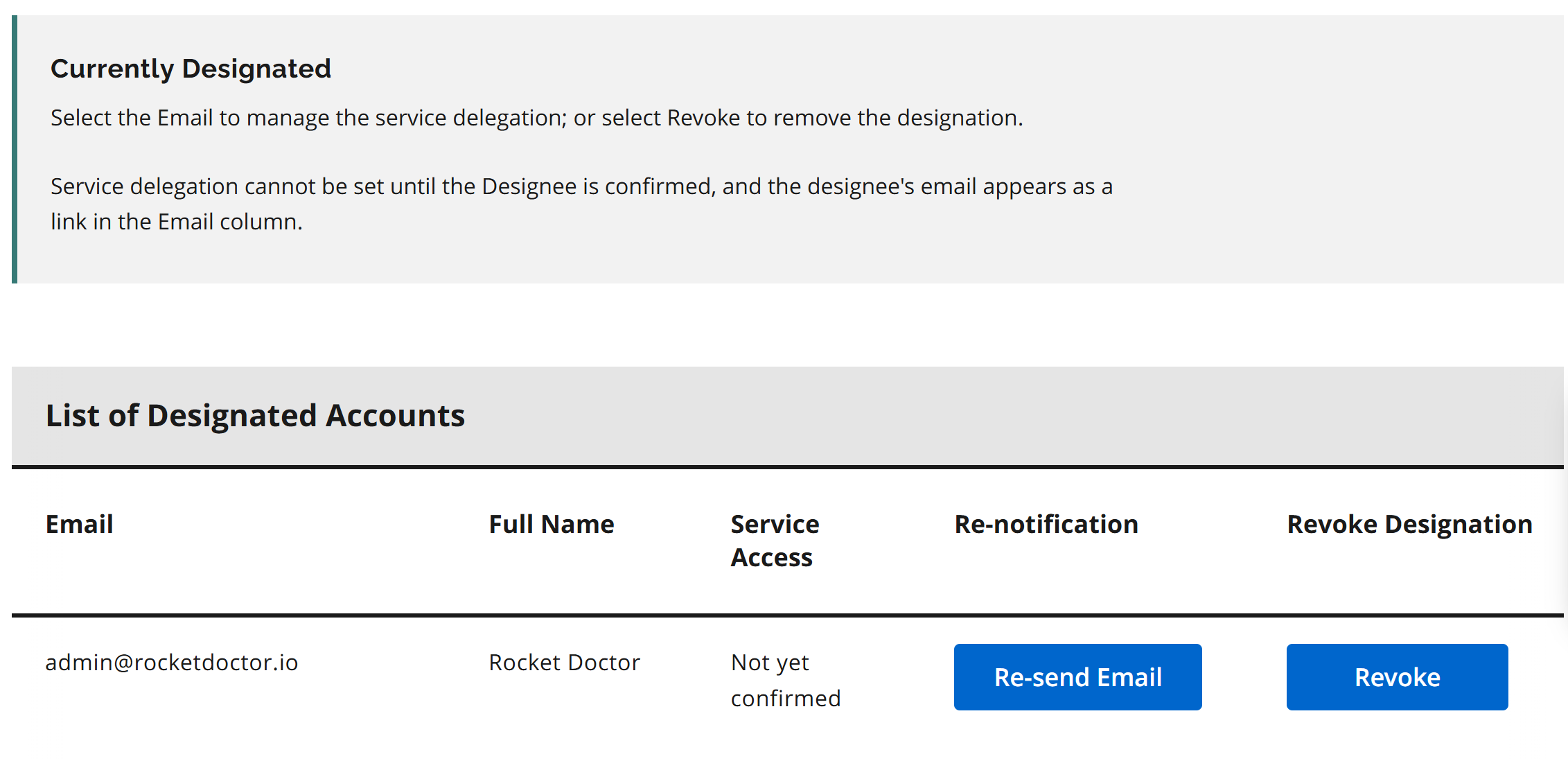
- No further action is needed on your end.
- Our team will confirm it within 1–2 business days.
Step 4: Email Provider Success Canada
Once you've submitted the designation:
- 📩 Email: providersuccess.ca@rocketdoctor.io
- Subject: MCEDT Designation Completed
This lets us verify your connection and ensure you're added to our master list for health card validation.